

Augmentt Blogs

Expert analysis and practical guides for navigating Microsoft 365 and the evolving world of cybersecurity. Your go-to hub for staying secure and efficient in the cloud.

Microsoft 365 holds your email, documents, Teams conversations, and identity data in one connected environment, which makes it extraordinarily valuable to attackers. When 90% of organizations have gaps in their M365 security configurations, the question isn’t whether vulnerabilities exist. It’s which ones you haven’t found yet.

This guide breaks down the seven most common Microsoft 365 security risks, explains why each one matters, and covers how to assess and standardize protection across multiple tenants.

What are Microsoft 365 security risks?

Microsoft 365 security risks are misconfigurations, vulnerabilities, and gaps in default settings that leave email, files, and identity data exposed to unauthorized access. The most common risks come from human error and overlooked configurations, such as phishing attacks, credential theft and missing multi-factor authentication. Business email compromise, overly permissive sharing settings, and gaps in backup strategies are also common culprits.

What makes M365 particularly vulnerable is how much it centralizes. Email, documents, Teams conversations, SharePoint sites…all of it lives in one connected environment. So when one account gets compromised, the attacker doesn’t just get access to a mailbox. They potentially get access to everything that user can touch.

Why attackers target Microsoft 365 environments

Microsoft 365 has become one of the most valuable targets for attackers, and the reason is straightforward: it’s where the data lives. With over 450 million paid seats globally, attackers know that focusing on M365 gives them the largest possible pool of potential victims.

The platform’s default settings tend to favor usability over security. Out of the box, M365 makes collaboration easy—sometimes too easy. Organizations that deploy the platform without adjusting configurations are essentially running with unlocked doors, and attackers actively scan for exactly that pattern.

According to CoreView’s research, 90% of organizations have gaps in essential M365 security protections. That’s not a small minority with problems. That’s nearly everyone.

  • Centralized data access: A single compromised account can unlock email, SharePoint, OneDrive, and Teams simultaneously
  • Widespread adoption: Attackers concentrate on platforms with the largest user bases because the payoff scales
  • Misconfiguration prevalence: Default settings rarely match security best practices, and most organizations never change them

7 most common Microsoft 365 security risks

Weak or missing multi-factor authentication

Multi-factor authentication, or MFA, adds a second verification step beyond passwords. After entering a password, users confirm their identity through a code sent to their phone or generated by an authenticator app. Without MFA, accounts are vulnerable to phishing, credential stuffing, and password spray attacks.

Here’s what’s surprising: even though MFA is widely recognized as essential, many organizations still haven’t enabled it everywhere. CoreView found that 87% of organizations have MFA disabled for some or all of their administrators. Administrator accounts have elevated privileges across the entire tenant, so leaving them unprotected creates enormous exposure.

The fix itself isn’t complicated; enabling MFA takes minutes. The challenge is usually organizational: getting buy-in, handling exceptions, and making sure the rollout doesn’t disrupt daily work.

Legacy authentication protocols still enabled

Legacy authentication refers to older protocols like POP3, IMAP, and basic SMTP that were designed before MFA existed. The problem? They bypass MFA entirely. Even if MFA is enabled for a user’s primary login, an attacker can authenticate through a legacy protocol and skip the second factor completely.

Attackers know this and actively exploit it. They’ll specifically attempt authentication using legacy protocols because modern security controls don’t apply. It’s a backdoor that many organizations don’t realize they’ve left open.

Blocking legacy authentication is one of the highest-impact changes an organization can make. However, it requires checking whether any critical applications—older email clients, multifunction printers, or line-of-business apps—still depend on those protocols. Cutting them off without warning can break workflows.

Too many global administrator accounts

Global administrator accounts have unrestricted access to every setting, every user, and every piece of data in the tenant. They can modify security configurations, access any mailbox, and delete anything. Every additional global admin account expands the attack surface.

The recommended practice is maintaining two to four global admin accounts, each protected by MFA and used only when absolutely necessary. In reality, many organizations have accumulated far more over time. It often happens because granting global admin seemed easier than figuring out the right granular permissions.

The principle of least privilege applies here: users and accounts get only the access they actually require. When someone leaves the organization or changes roles, their elevated access often lingers unless there’s a process to review and revoke it.

Oversharing in SharePoint and OneDrive

Default sharing settings in SharePoint and OneDrive often allow external or anonymous link sharing. While convenient for collaboration, this means sensitive files can leave the organization with a single click.

The risk compounds when users don’t fully understand what they’re sharing. A link set to “Anyone with the link” can be forwarded indefinitely. The original sharer may never know their data has spread beyond its intended audience. Once that link is out there, controlling access becomes nearly impossible.

Sharing SettingRisk LevelWhen to Use
Anyone with the linkHighRarely—only for truly public content
People in your organizationMediumInternal collaboration
Specific peopleLowSensitive documents requiring controlled access

Restricting external sharing to specific domains or requiring authentication helps contain exposure. The tradeoff is slightly more friction for legitimate collaboration, but the reduction in risk is usually worth it.

Weak email security settings

Email authentication protocols verify that messages actually come from authorized senders. Without them, attackers can spoof your domain to send phishing emails that appear completely legitimate, even to careful recipients.

Three protocols work together to provide email authentication:

  • SPF (Sender Policy Framework): Specifies which servers are authorized to send email for your domain
  • DKIM (DomainKeys Identified Mail): Adds a digital signature to verify message integrity
  • DMARC (Domain-based Message Authentication): Tells receiving servers how to handle messages that fail SPF or DKIM checks

Many organizations have incomplete or misconfigured email authentication. A common gap is having SPF and DKIM configured but no DMARC policy, which means spoofed emails may still reach recipients. Setting up all three protocols correctly takes some DNS work, but it significantly reduces the risk of domain spoofing.

Unmonitored third-party app permissions

OAuth apps can request broad permissions to M365 data, and users often grant consent without fully understanding what access they’re allowing. When someone clicks “Allow” on an app permission request, they might be giving that app ongoing access to their mailbox, calendar, contacts, and files.

This creates shadow IT risks where unauthorized applications have persistent access to sensitive data. The danger increases when employees leave or when an app vendor experiences a breach. Those OAuth tokens remain valid until explicitly revoked, giving attackers a potential backdoor that doesn’t require stealing credentials.

Regular audits of consented applications help identify and remove unnecessary access. Most organizations are surprised by how many apps have accumulated permissions over time, many of which are no longer actively used.

Inconsistent security policies across tenants

For MSPs managing multiple customer environments, policy drift represents a persistent challenge. Each tenant may have different configurations, different license levels, and different security baselines. Keeping track of what’s enabled where becomes increasingly difficult as the customer count grows.

Inconsistency creates blind spots. A security control enabled for one customer might be missing for another, and without centralized visibility, gaps often go unnoticed until a breach occurs. The problem isn’t usually negligence; it’s that manual configuration across dozens of tenants doesn’t scale.

Tip: Building security baseline templates aligned with frameworks like CIS or NIST allows you to apply consistent configurations across all tenants without manually configuring each one individually.

How to assess your Microsoft 365 security posture

Identifying which risks exist in your environment requires systematic assessment rather than guesswork. Microsoft Secure Score provides a built-in starting point—it grades your tenant’s security configuration and recommends specific improvements based on what’s enabled or missing.

However, Secure Score doesn’t cover everything. Industry frameworks like CIS Benchmarks and NIST Cybersecurity Framework offer more comprehensive configuration guidance. CIS Benchmarks, for example, provide specific settings mapped to security outcomes, making it easier to prioritize what to fix first.

  • Microsoft Secure Score: Built-in tool that grades tenant security and recommends improvements
  • CIS and NIST frameworks: Industry standards for evaluating configuration compliance
  • Security risk assessments: Automated scans that identify misconfigurations across tenants

For MSPs, running security risk assessments across all customer tenants reveals patterns and common gaps. This visibility helps prioritize which risks to address first and provides concrete data for client conversations about security investments.

How MSPs standardize Microsoft 365 security across clients

Managing security across dozens or hundreds of tenants manually isn’t sustainable. The time required to configure each tenant individually, monitor for changes, and respond to alerts quickly exceeds what most MSP teams can handle, especially when senior security staff are limited.

Centralized management platforms address this challenge by providing unified controls for Conditional Access, Defender, and MFA settings across all tenants. Rather than logging into each customer’s admin portal separately, technicians can view and modify configurations from a single interface.

  • Security baseline templates: Pre-built configurations aligned with CIS, NIST, or SCuBA standards that can be applied consistently
  • Cross-tenant policy management: Unified controls that apply settings across multiple tenants simultaneously
  • Automated breach detection: Real-time alerts that notify technicians of suspicious activity without requiring manual monitoring

Augmentt’s Secure Autopilot enables MSPs to apply security best practices with one click, regardless of customer license tier. Lower-tier licenses don’t receive the same level of Microsoft alerting, but Augmentt extends breach detection to all license levels, giving MSPs visibility across their entire customer base without requiring premium licensing for every tenant.

See how Augmentt helps MSPs standardize M365 security →

FAQs about Microsoft 365 security risks

Is Microsoft 365 secure by default?

Microsoft 365 includes built-in security features, but default configurations prioritize ease of use over protection. Organizations that deploy M365 without actively hardening settings leave significant gaps that attackers routinely exploit. Security requires intentional configuration, not just deployment.

What is the biggest security threat facing Microsoft 365 users?

Phishing attacks targeting user credentials remain the most common threat, especially when accounts lack multi-factor authentication or email security protocols like DMARC. Business email compromise—where attackers impersonate trusted contacts to request wire transfers or sensitive data—follows closely behind.

How often should organizations audit Microsoft 365 security settings?

Security configurations benefit from review at least quarterly, or whenever Microsoft releases significant updates. This cadence helps catch policy drift and newly introduced vulnerabilities before they become exploitable. Automated monitoring can supplement periodic manual reviews.

Does Microsoft 365 license tier affect security risk exposure?

Lower-tier licenses lack advanced security features like Conditional Access and Defender for Office 365. However, core protections like MFA and email authentication can be configured on any license. With Augmentt, MSPs can receive breach alerts even for customers on lower-tier licenses—extending visibility beyond what Microsoft natively provides.

Which compliance frameworks apply to Microsoft 365 security?

Common frameworks include CIS Benchmarks, NIST Cybersecurity Framework, and Microsoft’s SCuBA baselines. Each provides specific configuration guidance for hardening M365 environments and can serve as a foundation for security policies that align with customer compliance requirements.


GDAP relationships don’t scale themselves. What works fine for five customer tenants becomes an operational bottleneck at fifty, and a genuine risk at two hundred when expiring relationships start slipping through the cracks.

Microsoft’s Partner Center handles GDAP setup well enough for individual relationships, but it wasn’t built for MSPs managing sprawling multi-tenant environments. This guide covers the mechanics of GDAP relationships, the challenges that compound at scale, and the practices that turn GDAP from administrative overhead into a repeatable, secure foundation for your managed services.

What is GDAP and why MSPs need it

Managing Granular Delegated Admin Privileges (GDAP) across multiple CSP environments comes down to three things: creating standardized role-based access templates, mapping those templates to security groups in your partner tenant, and using Partner Center to handle customer approvals. Instead of granting blanket admin access, you assign only the specific Microsoft Entra roles each technician actually uses—and those assignments expire after a set period.

GDAP replaced Delegated Admin Privileges (DAP), which Microsoft fully deprecated in 2023. The old model gave CSP partners standing Global Administrator access to every customer tenant, indefinitely. GDAP flips that approach entirely.

  • GDAP: Time-bound, role-specific access where partners request only the Entra roles they need, with relationships that expire and require renewal
  • DAP (deprecated): The legacy model that automatically granted Global Administrator rights to CSP partners with no expiration
  • Zero Trust alignment: GDAP enforces least privilege, meaning partners receive the minimum access required for their work—nothing more

How GDAP relationships work in Microsoft Partner Center

A GDAP relationship is essentially a formal agreement between your CSP partner tenant and a customer’s Microsoft 365 tenant. It spells out which roles your team can use, how long the access lasts, and which security groups can exercise those permissions.

GDAP roles and security group assignments

Here’s where GDAP differs from what you might expect: it assigns Microsoft Entra roles to security groups, not individual users. You create groups in your partner tenant—something like “Helpdesk Tier 1” or “Security Admins”—and then assign those groups to the GDAP relationship.

The roles MSPs typically request include Exchange Administrator for mailbox work, Intune Administrator for device policies, User Administrator for account provisioning, and Security Reader for monitoring. Global Administrator? Rarely necessary when you scope roles properly.

Least privilege access and role scoping

Least privilege means requesting only the roles your technicians actually use day-to-day. A helpdesk tech resetting passwords doesn’t need Exchange Administrator rights. A security analyst reviewing sign-in logs doesn’t need User Administrator access.

The practical benefit is straightforward: if a technician’s credentials get compromised, the attacker only gains access to that user’s limited role assignments—not full administrative control over customer tenants.

Cross-tenant access settings for CSP partners

Cross-tenant access settings control how external organizations, including CSP partners, interact with a customer’s tenant. When a customer approves a GDAP relationship, they’re trusting your partner tenant to authenticate users who will access their environment.

Customers can configure inbound access policies to require specific authentication methods from partner users. This explains why enforcing MFA on your partner tenant matters—some customers configure their tenants to reject access from partners without strong authentication.

How to set up a GDAP relationship step by step

The GDAP setup workflow stays consistent, though you’ll repeat it for each customer tenant. Once you understand the process, you can spot where automation and standardization save the most time.

1. Request a GDAP relationship in Partner Center

In Partner Center, go to Customers, select the customer, and choose “Request admin relationship.” You’ll pick the specific Entra roles you want and set a duration—up to 730 days, or roughly two years. Each customer tenant requires its own separate request.

2. Customer approval and admin consent

Partner Center generates a unique approval link that you send to your customer. A Global Administrator in the customer’s tenant clicks the link and approves the relationship. If nobody approves within 90 days, the link expires.

3. Assign Microsoft Entra roles to security groups

After approval, you map the granted roles to your internal security groups. This step determines which technicians can actually use the access. You might assign User Administrator to your “Helpdesk” group and Security Reader to your “SOC Analysts” group.

4. Configure GDAP expiration and auto-extension

GDAP relationships expire based on the duration you set during the request. Auto-extend, when enabled, automatically renews the relationship before expiration with the same role assignments—no customer re-approval required. Without auto-extend, you’ll request a new relationship and get customer approval all over again.

5. Audit GDAP activity logs

Partner Center logs GDAP relationship changes, and customer tenants log administrative actions taken by partner users. Reviewing these logs helps verify that technicians are using appropriate access and surfaces any unusual activity.

GDAP challenges MSPs face in multi-CSP environments

The GDAP model works fine for individual relationships. But MSPs managing dozens or hundreds of customer tenants run into operational friction that compounds quickly.

Manual and repetitive setup across tenants

Each GDAP relationship requires individual configuration. Partner Center doesn’t offer native bulk setup, so onboarding 50 new customers means repeating the same workflow 50 times. The manual process introduces inconsistency and eats up technician hours.

No bulk role assignment in Partner Center

After customers approve relationships, you still assign security groups to roles one relationship at a time. For MSPs with large customer bases, this step alone can take hours during onboarding or when adjusting role assignments across your portfolio.

Tracking expirations across hundreds of relationships

GDAP relationships expire. Without centralized tracking, you risk losing access to customer tenants unexpectedly—often discovering the problem only when a technician can’t complete a support ticket. Microsoft doesn’t send proactive expiration warnings to partners.

Inconsistent role scoping between CSP partners

When customers work with multiple CSPs—perhaps one for licensing and another for managed services—each partner has independent GDAP relationships with potentially overlapping or conflicting role assignments. This creates confusion about who has what access and complicates security audits.

ChallengeUnder DAPUnder GDAP
Access scopeAll-or-nothing Global AdminGranular role selection
DurationIndefiniteTime-limited (requires renewal)
Multi-CSP visibilityLimitedPer-relationship tracking required
Bulk managementNot applicableNot natively supported

GDAP security best practices for multi-tenant MSPs

Standardizing your GDAP approach across all customer tenants reduces risk and makes your security posture auditable. The following practices work whether you manage 20 tenants or 200.

Use a third-party multi-tenant tool

Native Partner Center workflows weren’t designed for MSP-scale operations. Multi-tenant management platforms centralize GDAP visibility, automate repetitive tasks, and provide the single-pane-of-glass view that Partner Center lacks. Augmentt’s Secure Autopilot, for example, surfaces GDAP status alongside security configurations across all your customer tenants from one dashboard.

Tiered security groups for L1 L2 and L3 technicians

Create separate security groups mapped to different GDAP role sets based on technician tier. Your L1 helpdesk team might get Password Administrator and Helpdesk Administrator, while L3 engineers get broader roles like Exchange Administrator or Security Administrator.

This structure lets junior technicians handle routine tasks without accessing sensitive configurations. It also simplifies onboarding—add a new hire to the appropriate group, and they inherit the correct GDAP access across all customers automatically.

Standardized least privilege role templates

Build reusable role templates for common MSP scenarios rather than selecting roles ad-hoc for each customer. A “Standard Managed Services” template might include User Administrator, Exchange Administrator, and Intune Administrator. A “Security Monitoring Only” template might include just Security Reader and Reports Reader.

MFA enforcement and authentication strength policies

Requiring phishing-resistant MFA for all technicians accessing customer tenants via GDAP is increasingly standard practice. You can configure authentication strength conditional access policies in your partner tenant to enforce this requirement. Customers increasingly audit their CSP partners’ authentication practices, so this protects both sides.

Regular access reviews and attestation workflows

Scheduling quarterly reviews of which security groups have access to which customer tenants helps catch stale assignments. Technicians leave or change roles, and role assignments drift from operational needs over time. Regular reviews support compliance requirements and reduce standing access risk.

How to track GDAP expiration and renewals at scale

Expired GDAP relationships mean lost access at the worst possible time—usually when a customer has an urgent issue. Proactive tracking prevents these disruptions before they happen.

  • Partner Center reports: You can export relationship data manually, but this requires regular attention and doesn’t provide alerts
  • PowerShell scripts: The Partner Center API supports automated queries, though scripts require maintenance as Microsoft updates the API
  • Third-party multi-tenant platforms: Centralized dashboards with automated expiration alerts and PSA integration work well here. Augmentt surfaces expiring relationships alongside other tenant health indicators, creating tickets before access lapses.

How to centralize GDAP visibility across all customer tenants

A unified view of GDAP status across your entire customer base transforms GDAP from an administrative burden into operational intelligence. Instead of checking relationships one by one, you see everything in context.

Unified dashboards for GDAP relationship status

An effective GDAP dashboard shows relationship status, expiration dates, assigned roles, and customer tenant mapping in one view. You can quickly identify which customers have relationships expiring soon, which have non-standard role assignments, and which lack relationships entirely.

Automated alerts for expiring GDAP relationships

Automated alerting prevents access loss by notifying your team before relationships expire. Effective alerts include the customer name, expiration date, and assigned roles so technicians can take action without researching the relationship details first.

PSA integration for GDAP renewal tickets

Integrating GDAP expiration alerts with your PSA creates actionable tickets that fit your existing workflow. A ticket created 30 days before expiration gives your team time to coordinate with the customer if re-approval is needed—rather than scrambling after access disappears.

Turning GDAP into a scalable MSP advantage

MSPs who standardize and automate GDAP management deliver better security outcomes while reducing operational overhead. The discipline GDAP requires—least privilege roles, time-limited access, documented relationships—aligns with the security practices customers increasingly expect from their partners.

Rather than treating GDAP as a compliance checkbox, consider it infrastructure for your managed services. Consistent role templates, tiered technician access, and centralized visibility become competitive differentiators when customers evaluate their CSP partners’ security maturity.

Ready to simplify GDAP management across all your tenants? Augmentt provides centralized GDAP visibility, automated expiration tracking, and one-click security actions—so your team spends less time in Partner Center and more time delivering value to customers.

FAQs about managing GDAP across multiple CSP environments

Can a customer have GDAP relationships with multiple CSP partners at the same time?

Yes, a customer tenant can maintain active GDAP relationships with multiple CSP partners simultaneously. Each relationship has independently scoped roles and expiration dates, so one partner might have Exchange Administrator access while another has only Security Reader permissions.

What happens to GDAP access when a customer switches CSP providers?

GDAP relationships are tied to the specific CSP partner tenant, so switching providers requires the new CSP to request a fresh GDAP relationship and the customer to approve it. The old partner’s relationship remains active until it expires or the customer explicitly removes it.

How do I handle GDAP when working with both direct and indirect CSP models?

Each CSP relationship—whether direct or through a distributor—requires its own GDAP configuration. MSPs operating in both models manage separate relationships per customer, which can mean duplicate setup work for the same tenant.

What is the difference between GDAP auto-extend and creating a new GDAP relationship?

Auto-extend automatically renews an existing GDAP relationship before expiration, preserving the same role assignments without requiring customer re-approval. Creating a new relationship starts fresh, requiring customer approval and manual security group assignment.

Which Microsoft Entra roles are required for common MSP tasks under GDAP?

Common MSP tasks map to specific roles: Exchange Administrator for mailbox management, Intune Administrator for device policies, User Administrator for account provisioning, and Security Reader for monitoring. Global Administrator is rarely necessary when you follow least privilege principles.

Managing Microsoft 365 manually works until it doesn’t. One day you’re handling a few user accounts and some basic security settings; the next you’re drowning in onboarding tickets, chasing license reports, and hoping nobody forgot to disable that departed employee’s account.

Automation changes the math entirely. This guide covers which M365 admin tasks can be automated, the tools available to do it, and how to choose an approach that actually fits your environment.

What is Microsoft 365 administration automation?

Microsoft 365 administration automation refers to using scripts, workflows, or dedicated platforms to handle repetitive administrative work without manual intervention. Instead of clicking through the admin portal every time someone joins or leaves the company, automation handles user provisioning, security policy enforcement, license management, and compliance monitoring on its own.

The practical effect is straightforward. Tasks that once required an administrator to log in, navigate menus, and configure settings now happen automatically based on triggers you define. A new hire appears in your HR system, and within minutes they have an account, the right licenses, group memberships, and security policies applied—all without anyone touching the Microsoft 365 admin center.

Why automate Microsoft 365 admin tasks?

Manual administration works fine when you’re managing a handful of users. Once you’re responsible for dozens of tenants or hundreds of users, the math stops working. Every user onboarding takes 20-30 minutes of clicking. Every offboarding takes longer. Reports pile up. Security configurations drift because nobody has time to audit them.

Automation changes the equation in a few key ways:

  • Time recovery: Tasks that took 30 minutes complete in seconds, freeing your team for work that actually requires human judgment.
  • Consistency: Scripts and workflows apply settings identically every time, eliminating the “I forgot to add them to that group” problem.
  • Faster incident response: Security events trigger immediate action rather than waiting for someone to notice an alert.
  • Scalability: Managing 50 tenants becomes operationally similar to managing 5.

The alternative—hiring more people to handle more manual work—rarely makes financial sense when automation can handle the same tasks at a fraction of the cost.

Microsoft 365 administration tasks you can automate

Nearly every routine administrative function in Microsoft 365 can be automated to some degree. The following categories represent where most organizations see the biggest returns.

Security policy enforcement

Conditional Access policies, Microsoft Defender settings, and tenant-wide security configurations can deploy automatically across one or many tenants. Rather than logging into each environment and clicking through the Azure portal, you define a security baseline once and apply it everywhere.

This approach is particularly valuable for aligning with frameworks like CIS, NIST, or Microsoft Secure Score. When your baseline reflects those standards, every tenant you manage automatically inherits that compliance posture.

MFA and authentication management

Multi-factor authentication enrollment can trigger automatically when new users are created. Re-registration prompts can go out when someone gets a new phone. Temporary Access Passes—one-time codes that let users authenticate while setting up MFA—can issue without a helpdesk ticket.

Authentication-related requests make up a significant portion of IT support tickets. Automating MFA workflows reduces that volume while simultaneously improving security posture.

User provisioning and onboarding

New user creation, group assignments, license allocation, and mailbox setup can all flow from a single trigger. That trigger might be an HR system update, a form submission, or a scheduled job.

User cloning is a common technique here. Instead of configuring a new hire from scratch, you replicate an existing user’s permissions and settings, then adjust as needed. What once required navigating multiple admin portals now completes in under a minute.

User offboarding and deprovisioning

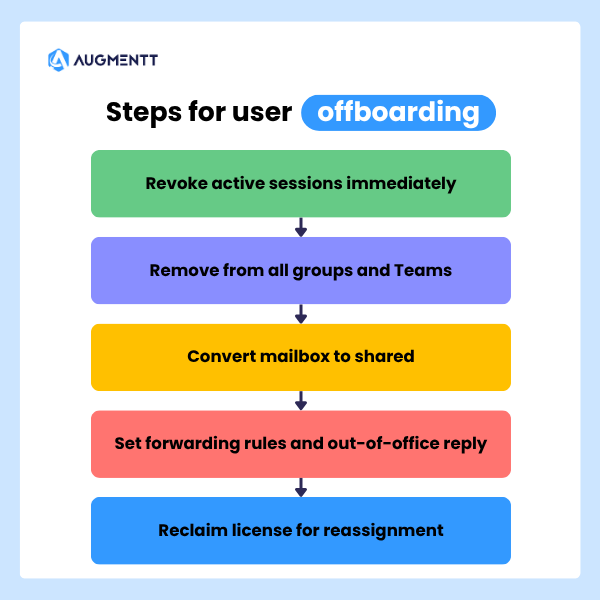
Offboarding is where automation delivers some of its clearest value. A well-designed workflow handles the entire departure process will:

  • Revoke active sessions immediately
  • Remove the user from all groups and Teams
  • Convert the mailbox to shared so colleagues can access historical emails
  • Set up forwarding rules and out-of-office replies
  • Reclaim the license for reassignment
steps for user offboarding - revoke active sessions immediately, remove from all groups and teams, convert mailbox to shared, set forwarding rules and out of office reply, reclaim license for reassignment

Without automation, offboarding often happens inconsistently. Some steps get skipped. Licenses sit unused for months. Former employees retain access longer than they should.

License assignment and reporting

Licenses can assign automatically based on role, department, or group membership in Entra ID (formerly Azure AD). When someone joins the sales team, they get the sales license bundle. When they move to engineering, their licenses adjust accordingly.

Automated reporting tracks usage patterns, identifies unassigned licenses, and flags when you’re approaching limits. Given that Microsoft 365 licensing represents a recurring cost, automated license management often pays for itself through reclaimed seats.

Permissions and access control

SharePoint site permissions, Teams memberships, and distribution group assignments can update automatically based on user attributes. When someone changes departments, their access rights adjust without anyone submitting a ticket.

This attribute-based approach prevents the access creep that accumulates when permissions are only added, never removed. It also creates an audit trail showing why each user has the access they have.

Compliance monitoring

Automated compliance checks continuously audit your tenant configuration against your defined baseline. When settings drift—whether through intentional changes or accidental misconfiguration—alerts trigger immediately.

This is far more reliable than periodic manual audits, which only catch issues after they’ve existed for weeks or months. Continuous monitoring means you know about problems while they’re still easy to fix.

Password resets and routine helpdesk requests

Self-service password reset (SSPR) eliminates one of the most common helpdesk tickets entirely. Users reset their own passwords through a secure workflow, freeing your team from repetitive work.

Beyond passwords, simple actions like updating email forwarding or setting out-of-office replies can also automate through user-facing workflows or scheduled jobs.

Intune device configuration

Device compliance policies, configuration profiles, and enrollment settings can deploy across all managed endpoints automatically. Every device—corporate or personal—meets your security standards before accessing corporate data.

For organizations managing hundreds of devices across multiple tenants, manual Intune configuration simply isn’t practical. Automation makes consistent device management possible at scale.

How to automate Microsoft 365 administration

Several approaches exist for automating Microsoft 365 tasks, each with different tradeoffs between flexibility, complexity, and ongoing maintenance.

PowerShell and Microsoft Graph API

PowerShell scripts calling the Microsoft Graph API offer the most granular control. You can automate virtually anything in Microsoft 365 with the right script—bulk user creation, complex permission changes, custom reporting, and more.

The tradeoff is complexity. PowerShell requires scripting expertise, careful credential management, and ongoing maintenance as Microsoft updates its APIs. Organizations with dedicated technical staff often build custom PowerShell solutions, but smaller teams may find the maintenance burden outweighs the flexibility.

Power Automate for no-code workflows

Power Automate is Microsoft’s native workflow tool. It uses a visual interface where you connect triggers (something happens) to actions (do something in response) without writing code.

Power Automate works well for approvals, notifications, and straightforward administrative tasks within a single tenant. The limitation appears with complex logic or multi-tenant scenarios—workflows become unwieldy quickly, and there’s no good way to manage dozens of separate flows across different environments.

Microsoft365DSC for configuration as code

Microsoft365DSC is an open-source tool that exports an entire tenant’s configuration as code. You can then apply that same configuration to other tenants, or use it to detect when settings have drifted from your baseline.

The tool requires PowerShell knowledge but provides excellent visibility into exactly what’s configured in each tenant. For organizations that want to treat tenant configuration like software—versioned, documented, and reproducible—Microsoft365DSC is worth exploring.

Third-party automation platforms

Dedicated platforms consolidate multiple automation methods into a unified interface, often with pre-built workflows for common tasks. These tools are especially valuable for MSPs and enterprises managing multiple tenants, where native tools require logging into each environment separately.

Platforms like Augmentt provide this consolidation specifically for MSP workflows, combining security automation, user lifecycle management, and reporting in a single multi-tenant interface.

Tools for Microsoft 365 administration automation

Tool TypeExamplesBest For
Native MicrosoftAdmin Center, Power AutomateSingle-tenant, simple workflows
Open-SourceMicrosoft365DSC, Maester, DCToolboxConfiguration management, auditing
MSP PlatformsAugmentt, CIPP, InforcerManaging many client tenants at scale

Native Microsoft admin tools

The Microsoft 365 Admin Center offers bulk actions for simple tasks—creating multiple users at once, assigning licenses in batches, and similar operations. Power Automate extends this with workflow capabilities for approvals and notifications.

For single-tenant scenarios with straightforward requirements, native tools often suffice. The limitation becomes apparent when managing multiple tenants: you’re switching between environments constantly, and there’s no unified view across your portfolio.

Open-source automation tools

Several community-maintained tools fill gaps in Microsoft’s native offerings:

  • Microsoft365DSC: Exports and applies tenant configurations as code for standardization and drift detection
  • Maester: Audits tenant configurations against best practices and generates documentation
  • DCToolbox: PowerShell module for managing and reporting on various M365 services
  • Entra Exporter: Backs up Azure AD and Intune configurations for disaster recovery

These tools are free but require technical expertise to implement and maintain effectively.

MSP-built automation platforms

Platforms designed specifically for service providers centralize multi-tenant management, security automation, and reporting into a single interface. Instead of logging into each tenant separately, you manage all client environments from one dashboard.

When evaluating multi-tenant platforms, look for one-click security baseline deployment, automated breach detection with remediation actions, and brandable reporting capabilities. These features transform M365 management from reactive ticket work into a proactive managed service.

Automating Microsoft 365 security at scale

Security automation deserves particular attention because manual security management can’t keep pace with modern threats. By the time someone notices a suspicious sign-in and decides what to do about it, the damage may already be done.

One-click security baseline deployment

Pre-configured security settings aligned with CIS, NIST, or Microsoft Secure Score recommendations can deploy across tenants with a single action. This eliminates the hours of manual configuration typically required to harden a new environment.

The value compounds with each additional tenant. Configuring security manually for one client takes hours. Configuring it for fifty clients takes the same amount of time when you’re applying a standardized baseline.

Conditional Access policy automation

Conditional Access policies control who can access what, from where, and under what conditions. They’re one of the most powerful security tools in Microsoft 365, but they’re also complex to configure correctly.

Automating Conditional Access deployment ensures uniform policies across all users and tenants. No more discovering that one client has weaker access controls because someone forgot to configure a policy.

Automated breach detection and remediation

Suspicious activities—impossible travel sign-ins, unusual data access patterns, forwarding rules to external addresses—can trigger immediate alerts. Pairing those alerts with one-click remediation actions (block the user, reset credentials, revoke sessions) dramatically reduces response time.

This is where automation moves from efficiency improvement to genuine security enhancement. A compromised account that’s blocked within minutes causes far less damage than one that remains active for hours or days.

Microsoft Secure Score automation

Microsoft Secure Score provides recommendations for improving your tenant’s security posture. Automating the implementation of those recommendations turns security improvement from a periodic project into a continuous process.

As Microsoft adds new recommendations or updates existing ones, automated systems can apply relevant changes without manual intervention.

Automating Microsoft 365 across multiple tenants

Multi-tenant management presents challenges that single-tenant tools weren’t designed to solve. The approaches that work for one environment often break down when you’re responsible for dozens.

Multi-tenant management challenges

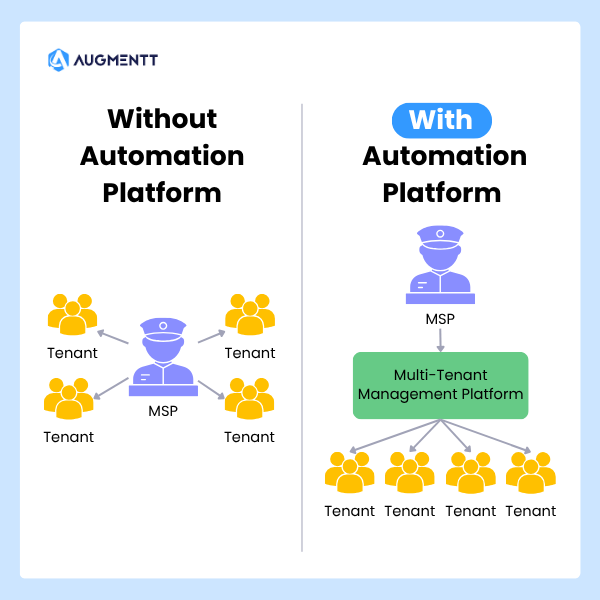
Native Microsoft tools require logging into each tenant individually. For an MSP managing 50 clients, that’s 50 separate admin sessions to check security status, apply updates, or generate reports. The time adds up quickly, and the context-switching creates opportunities for errors.

There’s also no native way to see what’s happening across all your tenants at once. You can’t easily answer questions like “which of my clients have MFA disabled for admins?” without checking each environment separately.

with vs without MSP automation platform differences

Standardizing configurations across clients

Automation enables standardized templates and security baselines across all tenants under management. Every client benefits from the same consistent configurations, reducing both risk and the cognitive load of remembering what’s deployed where.

Standardization also simplifies troubleshooting. When every tenant is configured the same way, you’re not constantly adjusting your mental model for each client’s unique setup.

Centralized reporting and visibility

Cross-tenant reports and dashboards aggregate data from all environments into a single view. Security posture, license usage, and user activity across your entire portfolio become visible without manual data collection.

Augmentt provides this centralized visibility specifically for MSPs, combining multi-tenant security management with automated, brandable reporting that can go directly to clients.

How to choose the right M365 automation approach

The right approach depends on your specific situation. A few questions help narrow the options:

  • What’s your technical capacity? PowerShell offers maximum flexibility but requires scripting skills. No-code platforms trade some flexibility for accessibility.
  • How many tenants are you managing? Single-tenant needs often work fine with native tools. Multi-tenant requirements point toward dedicated platforms.
  • What’s your primary goal? Security hardening, user lifecycle management, and compliance reporting each have tools that excel in that specific area.
  • What integrations matter? Consider whether the solution connects with your PSA, RMM, or existing reporting tools.
  • What’s your budget and timeline? Building custom scripts costs less upfront but requires ongoing maintenance. Platforms cost more but deliver immediate value.

Turn Microsoft 365 administration into a scalable service

Automation transforms M365 administration from reactive, ticket-based work into a proactive operation. By eliminating manual tasks, your team can focus on strategic improvements rather than routine configuration.

The organizations seeing the best results treat automation as an ongoing operational approach rather than a one-time project. They continuously identify manual work that could be automated and build repeatable processes that scale with growth.

FAQs about Microsoft 365 administration automation

What is the difference between Power Automate and PowerShell for Microsoft 365 automation?

Power Automate is a no-code workflow tool best for approvals, notifications, and connecting services with visual logic. PowerShell provides deep, granular control for complex or bulk tasks but requires scripting expertise. Many organizations use both: Power Automate for user-facing workflows, PowerShell for backend administration.

Do I need premium Microsoft 365 licensing to automate admin tasks?

Many fundamental automation tasks work with standard licensing. However, advanced security features—certain Conditional Access policies, Microsoft Defender capabilities, and Entra ID Premium features—require premium licenses like Azure AD Premium P1/P2 or Microsoft 365 E5.

How do IT teams typically measure time savings from Microsoft 365 automation?

Teams compare time spent on manual tasks before and after automation. Key metrics include ticket resolution times, user onboarding and offboarding duration, and hours spent on manual reporting. Many teams also track tickets eliminated as a proxy for automation value.

Can IT administrators automate Microsoft 365 tasks without coding experience?

Yes. Power Automate and various third-party platforms offer no-code interfaces with pre-built workflows. Administrators can automate complex processes without scripting knowledge, though understanding what’s being automated remains important for troubleshooting.

What are the risks of automating Microsoft 365 administration?

The primary risk is applying incorrect configurations at scale—a mistake that affects one user manually could affect thousands when automated. Other risks include over-permissioning service accounts and creating dependencies on tools without proper documentation. Testing automations in limited scope before broad deployment mitigates most of these concerns.

For a deeper dive into the risks of unorganized multi-tenant management, check out our on-demand webinar for Why Identity Security Fails at Scale.

Saas Security Tech Stack

Most MSPs are already running some form of SaaS security: email filtering here, MFA there, maybe a backup solution bolted on.

The problem isn’t a lack of tools; it’s that disconnected tools create gaps, and gaps are where breaches happen.

A SaaS security stack brings these layers together into a coordinated defense that protects cloud applications like Microsoft 365 across all your client tenants. This guide covers what belongs in that stack, how to build it step by step, and how to turn it into a scalable managed service.

What is a SaaS security stack

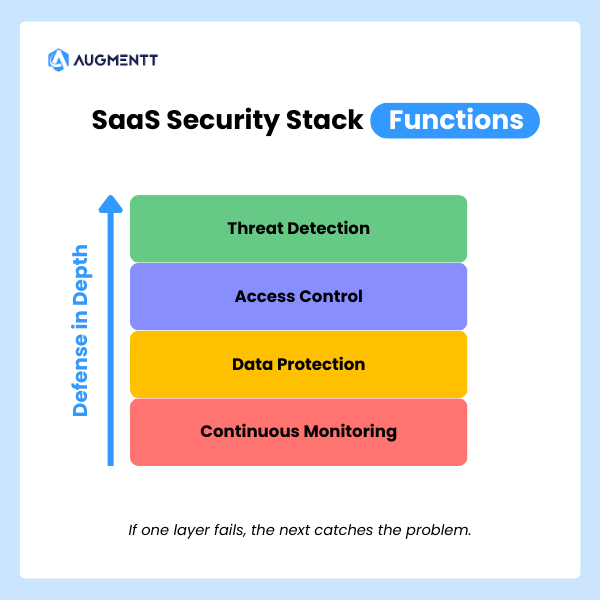
A SaaS security stack is a layered collection of tools and policies that protect cloud-based applications from threats. Think of it as the security equivalent of defense in depth: if one layer fails, another catches the problem. For MSPs managing Microsoft 365, Google Workspace, or Salesforce across multiple client tenants, a SaaS security stack typically combines identity controls, threat detection, email filtering, and continuous monitoring into a unified approach.

Traditional security focused on firewalls and network perimeters. SaaS security operates differently because the applications live in the cloud, not behind your firewall. The attack surface has shifted to user accounts, credentials, and application permissions, which is exactly where a SaaS security stack concentrates its protection.

saas security stack functions - continuous monitoring, data protection, access control, threat detection

A complete stack handles several overlapping functions:

  • Threat detection: Spots suspicious sign-ins, credential stuffing attempts, and unusual user behavior
  • Access control: Enforces MFA, Conditional Access policies, and least-privilege permissions
  • Data protection: Prevents unauthorized sharing and accidental exposure of sensitive files
  • Continuous monitoring: Tracks configuration changes, shadow IT, and third-party app integrations

Why MSPs need a SaaS security stack

SaaS threats targeting Microsoft 365 and cloud applications

Microsoft 365 is the most common target for attacks against small and mid-sized businesses. Your clients use it for email, file storage, and collaboration, which makes it valuable to attackers too.

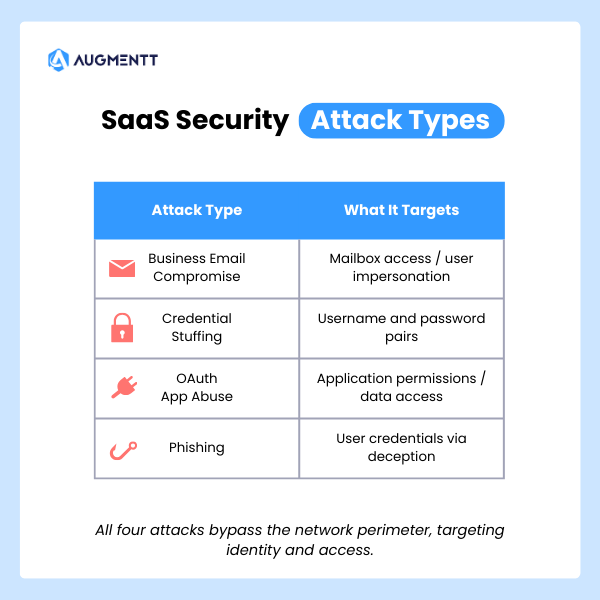
The attack patterns are predictable once you know what to look for:

  • Business email compromise (BEC): An attacker gains mailbox access and impersonates the user to request wire transfers or sensitive data
  • Credential stuffing: Automated login attempts using stolen username/password combinations from previous breaches
  • OAuth app abuse: Malicious third-party apps request excessive permissions, then quietly exfiltrate data in the background
  • Phishing campaigns: Sophisticated emails that slip past native filters and trick users into handing over credentials

Each of these attacks targets identity and accessEach of these attacks targets identity and access rather than network infrastructure. That shift explains why perimeter-based security alone no longer provides adequate protection.

saas security attack types - business email compromise, credential stuffing, OAuth app abuse, and phishing

The hidden cost of fragmented security tools

Many MSPs piece together security coverage using disconnected tools: one for email filtering, another for endpoint protection, a third for backup. Each tool might work fine on its own, but the gaps between them create blind spots.

Technicians end up jumping between consoles, manually correlating alerts, and spending hours on tasks that could run automatically. Fragmentation also makes it harder to maintain consistent security policies across all client tenants. When every tenant has slightly different configurations, misconfigurations slip through consistent security policies across all client tenants. When every tenant has slightly different configurations, misconfigurations slip through.

Client expectations for proactive security

SMB clients now expect continuous monitoring and rapid incident response from their MSP. When a breach happens, they want to know you caught it early and took immediate action—not that you discovered it three weeks later during a routine check.

Security has become a core expectation rather than an optional add-on. Clients will move to competitors who can demonstrate proactive protection and clear reporting on what threats were blocked.

Core components of a SaaS security stack

Every MSP security stack looks slightly different depending on client mix and service offerings. However, certain layers form the foundation that everything else builds on.

ComponentFunctionExample Tools
Microsoft 365 securityMulti-tenant visibility, policy enforcement, Secure Score monitoringAugmentt, Inforcer, CIPP
Identity and access managementMFA, Conditional Access, centralized identity controlsAzure AD, Duo, Okta
Email securityAnti-phishing, safe attachments, link scanningDefender for Office 365, Avanan, Proofpoint
Endpoint detection and responseThreat detection on managed devicesSentinelOne, CrowdStrike, Defender for Endpoint
SaaS monitoringUnsanctioned app detection, usage trackingAugmentt, BetterCloud, Torii
Backup and disaster recoverySaaS data protection for email, OneDrive, SharePointDatto, Veeam, Spanning

Microsoft 365 security and multi-tenant management

For most MSPs, Microsoft 365 sits at the center of everything. You’re managing email, file storage, collaboration, and identity within one ecosystem, often across dozens of tenants with different licensing levels.

Tools built specifically for MSP multi-tenant workflows let you see all your clients from a single dashboard, apply security baselinesTools built specifically for MSP multi-tenant workflows let you see all your clients from a single dashboard, apply security baselines without logging into each tenant individually, and track Secure Score improvements over time. This unified visibility separates scalable MSP operations from manual, tenant-by-tenant firefighting.

Identity and access management

Identity is the new perimeter. MFA enforcementIdentity is the new perimeter. MFA enforcement, Conditional Access policies, and centralized identity controls form the backbone of SaaS security.

Conditional Access refers to rules that block or allow sign-ins based on conditions like location, device type, or risk level. For example, you might allow sign-ins from managed devices but block access from unknown locations unless the user completes additional verification.

Without strong identity controls, a single compromised password can give an attacker full access to a client’s entire Microsoft 365 environment.

Email security and phishing protection

Native Microsoft Defender capabilities provide a baseline, but many MSPs layer on third-party email security for advanced phishing protection, attachment sandboxing, and data loss prevention. This additional layer is especially relevant for clients in regulated industries or those handling sensitive financial data.

Endpoint detection and response

Endpoint Detection and Response (EDR) tools monitor managed devices for malicious activity, suspicious processes, and indicators of compromise. While EDR focuses on the device layer rather than the SaaS layer, the two work together. A compromised endpoint often leads to a compromised cloud account.

SaaS application monitoring and shadow IT discovery

Shadow IT refers to applications employees use without IT approval, such as personal Dropbox accounts, unauthorized project management tools, or random browser extensions that request access to corporate data. These apps often sit outside your security controls entirely.

Discovering and managing shadow IT helps close security gaps and supports compliance requirements. You can’t protect what you don’t know exists.

Backup and disaster recovery

Microsoft’s native retention policies are limited and don’t protect against ransomware that encrypts or deletes data. Cloud-to-cloud backup solutions ensure you can recover email, OneDrive, and SharePoint data when something goes wrong.

How to build a SaaS security stack

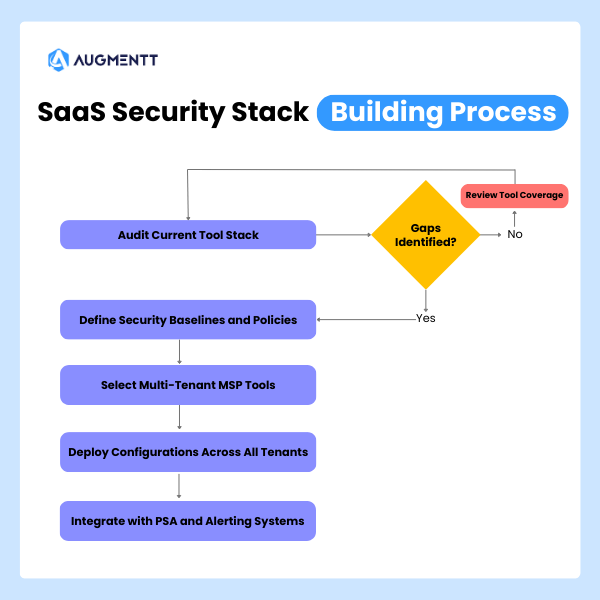
saas security stack building process - audit current tool stack, define security baselines and policies, select multi-tenant MSP tools, deploy configurations across all tenants, integrate with PSA and alerting systems

1. Audit your current MSP tool stack

Start by inventorying every security tool you currently use. Map out what each tool covers, where they overlap, and where gaps exist.

Key questions to work through:

  • Does each tool support multi-tenant management?
  • How well do your tools integrate with each other?
  • Are you paying for overlapping functionality?
  • Which tenants have inconsistent security configurations?

This audit often reveals that you’re paying for capabilities you don’t use while missing coverage in critical areas.

2. Define security baselines and policies

A security baseline is a standardized set of configurations you apply consistently across all clients. Rather than inventing policies from scratch, you can start with established frameworks like CIS Benchmarks, NIST guidelines, or Microsoft’s SCuBA baselines.

These frameworks provide tested recommendations for securing Microsoft 365 environments. They give you a defensible starting point and help during compliance conversations with clients or auditors.

3. Select tools built for multi-tenant MSP workflows

Enterprise security tools designed for single organizations often create friction for MSPs. You end up with separate logins, no cross-tenant visibility, and manual processes that don’t scale.

When evaluating tools, look for:

  • Multi-tenant dashboard: A single view across all clients without switching contexts
  • One-click deployment: Apply policies without manual configuration per tenant
  • PSA/RMM integration: Fits your existing workflows and ticketing systems
  • Noise-tuned alerting: Customizable alerts that don’t overwhelm technicians with low-priority notifications

4. Deploy security configurations across all tenants

Once you’ve defined baselines and selected tools, roll out configurations using templates and automation. The goal is consistency: every client gets the same foundational protection, with customizations layered on top as needed.

This approach also speeds up onboarding. When you bring on a new client, you apply your standard template rather than building security from scratch each time.

5. Integrate with your PSA and alerting systems

Security alerts are only useful if someone acts on them. Connect your SaaS security tools to your PSA so alerts automatically create tickets, and technicians can respond without switching between systems.

Tip: Look for platforms that offer noise-tuned alerts Look for platforms that offer noise-tuned alerts. Too many notifications lead to alert fatigue, where technicians start ignoring warnings—including the critical ones.

Best practices for managing your MSP security stack

Standardize configurations with security templates

Reusable templates speed up onboarding and ensure uniform protection across your client base. You might create different templates for different client profiles: one for healthcare clients with HIPAA requirements, another for general SMBs with standard security needs.

Automate breach detection and remediation

Automated alerting combined with one-click remediation actions dramatically reduces response time. Instead of spending 20 minutes investigating and remediating manually, a technician can block a user, reset a password, or revoke sessions in seconds.

Generate branded reports for QBRs and stakeholders

Automated, white-labeled security reports demonstrate value to clients without hours of manual work. Schedule reports to run monthly or quarterly, and use them during business reviews to show what threats were blocked and what improvements were made.

Explore how Augmentt automates security reporting for MSPs →

Review security policies on a quarterly basis

Threats evolve, Microsoft releases new features, and client environments change. Periodic policy audits help you catch configuration drift and adjust baselines to address emerging risks before they become problems.

How to align your SaaS security stack with compliance frameworks

Mapping to CIS and NIST controls

CIS Benchmarks provide specific, actionable configuration recommendations for Microsoft 365. NIST frameworks offer broader guidance on risk management and security controls. Aligning your stack to these standards strengthens client security posture and simplifies audit conversations.

Using Microsoft Secure Score and SCuBA baselines

Microsoft Secure Score is a built-in measurement of your tenant’s security configuration, expressed as a percentage. Higher scores indicate better alignment with Microsoft’s security recommendations.

SCuBA (Secure Cloud Business Applications) baselines from CISA provide government-tested recommendations for Microsoft 365 security. Both tools help you measure progress and identify configuration gaps across your client base.

Meeting cyber insurance security requirements

Insurers increasingly require specific controls (MFA everywhere, email security, backup verification) before issuing or renewing policies. A well-built SaaS security stack helps clients qualify for coverage and may reduce premiums.

Integrating your SaaS security stack with PSA and RMM

Reducing alert fatigue through smart integration

Not every security event deserves a ticket. Customizable, noise-tuned alerts let you filter out low-priority notifications while ensuring critical incidents get immediate attention. The goal is actionable alerts, not a flood of noise.

Key integrations for MSP security workflows

  • PSA ticketing: Auto-create tickets from security alerts with relevant context included
  • RMM: Correlate endpoint and SaaS security data for fuller visibility into incidents
  • Reporting APIs: Feed security data into existing client reports and dashboards

Turn your SaaS security stack into a scalable managed service

A well-architected stack enables MSPs to deliver security as a repeatable, profitable service rather than a manual, ad-hoc effort. When your tools handle detection and remediation automatically, L1 and L2 technicians can safely manage tasks that previously required senior engineers.

This scalability transforms SaaS security from a cost center into a revenue driver. The key is choosing tools that reduce manual work while maintaining consistent protection across all tenants.

See how Augmentt helps MSPs automate, secure, and simplify Microsoft 365 security across all tenants →

FAQs about SaaS security stacks for MSPs

Do I need premium Microsoft licensing to secure all tenants?

No—many SaaS security platforms can monitor and enforce best practices across Business Basic, Business Standard, and other non-premium license tiers. You can deliver meaningful protection without requiring E5 or premium add-ons for every client.

What is the difference between SaaS security and endpoint security?

SaaS security protects cloud applications and user accounts from threats like credential theft and unauthorized access. Endpoint security focuses on detecting and blocking malware or threats on individual devices. Both layers work together in a complete security stack.

How long does it take to deploy a SaaS security stack across multiple tenants?

With tools built for MSP multi-tenant workflows, initial deployment can happen within days rather than weeks. Pre-built security templates and one-click baseline application dramatically speed up the process.

Can I white-label security reports for my MSP clients?

Yes—many MSP-focused platforms allow you to brand reports with your logo and customize the content. This makes it easy to deliver professional security summaries during QBRs or stakeholder meetings.

How do I handle clients with different Microsoft 365 license tiers?

Use a SaaS security platform that normalizes visibility and policy enforcement across all license levels. This approach lets you apply consistent baselines even when clients have mixed licensing across Business Basic, Business Premium, and E3/E5 plans.

Cover photo by JC Mariano on Unsplash

Summary

Hackers don’t usually break in anymore; they log in. That’s why identity (user accounts and passwords) is now the biggest risk for MSPs. Since Microsoft 365 controls email, files, and admin access, one stolen login can cause serious damage fast. MSPs can reduce risk by using strong sign-in protection and limiting powerful access.

If you run an MSP, you already know the job has changed.

A few years ago, most attacks were about breaking into a network. Today, the biggest danger is much simpler:

Hackers are trying to log in.

That’s why identity, who someone is online and what they can access, has become the #1 way attackers get in.

And for MSPs, this shift changes everything.

That’s why identity, who someone is online and what they can access, has become the #1 way attackers get in.

And for MSPs, this shift changes everything.

What “Identity” Means

An identity is basically a digital name tag.

It includes things like:

  • A username and password
  • A Microsoft 365 login
  • An email account
  • A Google Workspace account
  • A sign-in to a cloud app

When attackers steal or trick someone into giving up their login, they don’t need to “hack” anything the old-fashioned way.

They just sign in like a normal user.

Why Hackers Love Identity Attacks

Identity attacks are popular for one big reason:

They’re easy, fast, and hard to notice.

View Post↗

Instead of smashing through a wall, attackers use a stolen key.

Once they’re inside, they can:

  • Read emails
  • Reset passwords
  • Steal files
  • Send invoices or wire fraud emails
  • Create new admin accounts
  • Spread malware
  • Lock systems with ransomware

And the scariest part?

Many of these actions look normal in the logs.

That’s why it’s so important for MSPs to stay on top of their tenants and users; just one data breach could cost their customers the global data breach average of $4.88 million.

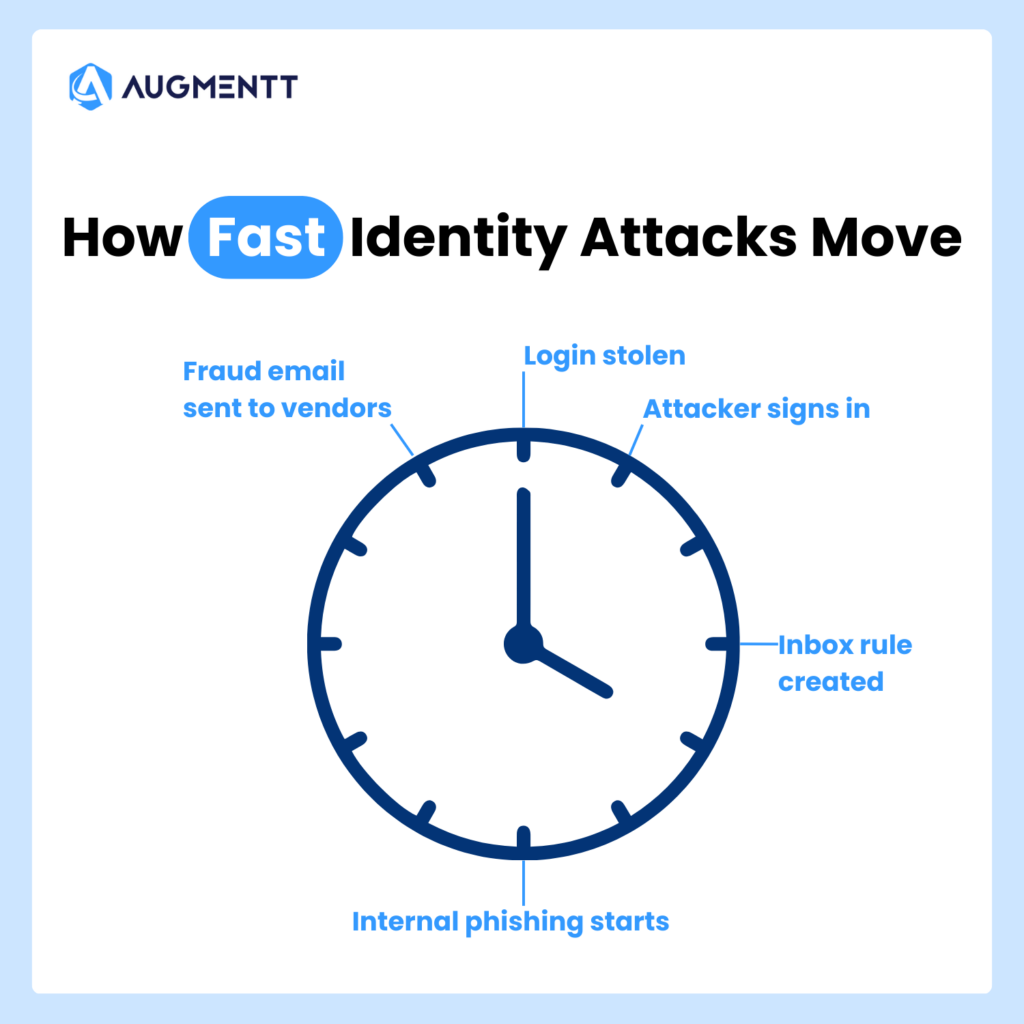
How Fast Identity Attacks Move: Minute 0 - Login stolen; Minute 5 - Attacker signs in; Minute 15 - Inbox rule created; Minute 30 - Internal phishing starts; 1 hour - Fraud email sent to vendors

The Most Common Identity Attacks MSPs See

Here are the identity-based attacks MSPs deal with most often.

1) Phishing (Fake Emails That Trick Users)

This is still the #1 method.

A user gets an email like:

  • “Your password expires today”
  • “You have a voicemail”
  • “Here’s the document you asked for”
  • “Urgent: invoice attached”

They click, they sign in, and now the attacker has their login.

It’s simple, and it works.

2) MFA Fatigue (Push Notification Spam)

Even when a client uses multi-factor authentication (MFA), attackers have found ways around it.

One common trick is sending MFA prompts over and over until the user taps Approve just to make it stop.

It’s like someone ringing your doorbell 40 times until you finally open the door.

3) Password Reuse

People reuse passwords. It’s human.

In fact, nearly half (46%) of people choose an easy-to-remember password over a more secure one. 

So if one website gets hacked, attackers try the same password across Microsoft 365, email, VPN, cloud apps, remote access tools, and anything else they can think of.

This is called “credential stuffing,” but you don’t need the fancy term.

It’s just trying stolen passwords everywhere.

4) Stolen Tokens (Sneaky “Already Logged In” Access)

This one is more advanced, but it’s becoming more common.

Sometimes attackers don’t steal the password.

Instead, they steal the “proof” that someone is already logged in.

So even if the user changes their password later, the attacker can stay inside.

5) Over-Permissioned Users (Too Much Access)

This is a huge issue in Microsoft 365 and cloud tools.

A user might have access to:

  • All SharePoint files
  • All mailboxes
  • Admin settings
  • Security settings
  • App permissions

Even when they don’t need it.

So when their account gets compromised, the attacker gets all that power too.

Why Microsoft 365 Is Often the Main Battleground

Most MSPs spend a huge part of their day inside Microsoft 365.

And that’s exactly why attackers focus on it.

Microsoft 365 controls email, SharePoint, OneDrive, Teams, user accounts, admin roles, app access, and security settings. So, if an attacker gets into Microsoft 365, they can do a lot of damage without ever touching a “server.”

For many small and mid-sized businesses, Microsoft 365 is the business.

What MSPs Can Do to Reduce Identity Risk

The good news?

There are clear steps MSPs can take to reduce identity attacks.

Here are the most important ones.

1) Know Who Has Admin Access

You can’t protect what you can’t see.

Many MSPs inherit messy environments where:

  • Too many people are admins
  • Old accounts still exist
  • Vendors were given access years ago
  • Privileged accounts are not tracked well

2) Reduce Unneeded Permissions

If a user doesn’t need access, remove it.

If an account isn’t used, disable it.

If someone is an admin “just in case,” fix it.

The goal is simple:

If an account gets hacked, limit the damage.

3) Enforce Strong MFA (Not Just “Any MFA”)

Some MFA setups are much stronger than others.

MSPs should push clients toward methods like using conditional access policies to enforce MFA, so that they are:

  • Harder to approve by mistake
  • Less vulnerable to phishing
  • Easier to audit

And just as important:

Make sure MFA is actually turned on for everyone who matters.

4) Monitor Identity Changes

A lot of attacks include changes like:

  • Adding a new admin
  • Turning off security settings
  • Creating inbox rules
  • Adding app permissions
  • Changing sign-in policies

These are often the first signs of a takeover.

Augmentt helps here by giving MSPs visibility into risky changes and identity-related configuration gaps—without needing to jump between tenants all day.

5) Standardize Your Security Baseline

One of the hardest parts of being an MSP is consistency.

Client A has one setup.
Client B has another.
Client C is “special.”

Attackers love this chaos.

MSPs need a standard baseline that answers questions like:

  • Who is allowed to be admin?
  • What security settings must be on?
  • What should be blocked?
  • What is monitored?

For instance, Augmentt helps MSPs standardize and track Microsoft 365 security posture across clients, so nothing slips through the cracks.

Final Thoughts

Identity is now the primary attack vector because it’s the easiest path for attackers.

They don’t need to break into a network.

They just need one user to:

  1. click a link
  2. approve a prompt
  3. reuse a password
  4. have too much access

For MSPs, the solution isn’t panic.

It’s visibility, consistency, and strong identity controls across every client.

And that’s exactly where Augmentt helps, by giving MSPs a clear view into Microsoft 365 security posture, identity risk, and configuration gaps across tenants, all in one place.

For a complete look at the biggest issues affecting MSPs, check out our New Cybersecurity Reality ebook!

2025 Year In Review

2025 was a milestone year for Augmentt. 

Over the past year, we focused on helping MSPs work smarter, move faster, and stay ahead of security risks in Microsoft 365. From stronger automation to clearer security insights, everything we released was built to give MSPs better control, without adding more complexity. 

Here’s a deeper look at what we shipped in 2025 and why it matters. 

Clearer, Stronger Security Across Microsoft 365 

Security was a top priority throughout 2025. MSPs need to quickly understand risk across tenants and take action without jumping between tools. This year, Augmentt made that easier. 

Better Visibility and Control for Defender 

In August, we rolled out new tools that simplify how MSPs review and manage Microsoft Defender policies

Instead of manually checking settings in each tenant, MSPs can now see where protections are missing or misconfigured in one place. They can also roll out consistent Defender policies across multiple customers, helping ensure every tenant meets the same security standard. 

Bringing Intune Insights into Augmentt 

In November, we introduced Intune Autopilot

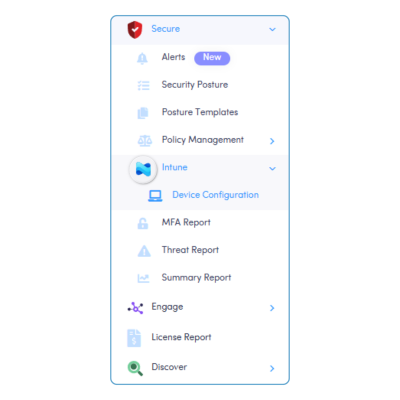
This update pulls key Intune data directly into Augmentt, giving MSPs a clearer view of device security and compliance. With everything in one dashboard, it’s easier to spot issues, understand risk, and improve device protection without switching between portals. 

Security Standards That Scale 

Throughout the year, we continued to expand security baselining. 

MSPs can now create standard Entra ID group baselines and apply them across tenants. This helps keep important controls (like Conditional Access, Defender, and Intune) aligned and consistent, even as environments grow. 

Automated Responses and Alerts 

In 2025, alerting became more than just notifications. Augmentt helped MSPs identify risks earlier and respond automatically when it mattered most.  

Catching MFA Gaps Early 

In May, we launched MFA registration alerts. These help MSPs close security gaps before they lead to account compromise, reducing risk without adding manual checks. 

Alert Auto-Remediation 

In July, alerting took another step forward with automatic remediation. 

When Microsoft 365 detects serious issues, like suspicious sign-ins, Augmentt can respond on its own. MSPs stay in control by setting rules for: 

  • Which alerts trigger action 
  • What steps should be taken 
  • When automation runs 
  • Whether settings apply globally or per tenant 

This helps protect customers even outside business hours. 

Easier User Management with Engage 

User management also saw meaningful improvements in 2025, especially within Engage Autopilot

Planned Offboardings, Less Stress 

MSPs can now schedule offboardings ahead of time, making it easier to handle employee exits smoothly and securely, without last-minute rushes. 

Faster Onboarding with Reusable Templates 

Onboarding workflows became quicker and more consistent with templates. MSPs can set up users the same way every time, saving effort and reducing errors. 

More day-to-day user actions were also added directly into Augmentt, cutting down on tool switching. 

Secure Access When Users Need It 

Temporary Access Passes quickly became one of the most popular features of the year. 

They allow MSPs to grant short-term, secure access without weakening security; perfect for onboarding, support, or recovery scenarios. 

A Strong Finish and a Bigger Vision Ahead 

To close out 2025, Augmentt raised $18 million in Series A funding led by Camber Partners. 

This investment supports an ambitious roadmap and sets the stage for even more innovation in 2026. We’re focused on building smarter automation, deeper security insights, and tools that truly fit how MSPs work. 

Thank You for Being Part of the Journey 

We’re grateful to every MSP and partner who worked with us in 2025. 

If you want to learn more about these updates and how Augmentt supports Microsoft 365 security and management, visit augmentt.com. We’re excited to keep building what’s next, together. 

Modern MSPs are under intense pressure: more clients, more security demands, more
tools, and the same or fewer technicians. Augmentt was built to solve that exact
problem.

Here are the 10 most powerful ways MSPs use Augmentt to save time, automate
work, and dramatically increase revenue per technician.

1. One Console to Replace Dozens of Microsoft Portals

Problem: Technicians jump between Entra, Intune, Defender, M365 Admin, and
multiple security portals for every task.


With Augmentt:
All tenants, security posture, alerts, policies, users, and devices are visible and
manageable from a single multi-tenant console.


Result:
• 60 to 70 percent fewer clicks per task
• No more hunting through portals
• Faster response times across every client

2. Multi-Tenant Security Baselines

Problem: Every customer has different security settings, which creates risk, drift, and
manual cleanup.


With Augmentt:
MSPs define standard security baselines for Conditional Access, Intune, and Defender and apply them across all tenants.


Result:
• New customers are secured in minutes
• Existing tenants stay aligned automatically
• No more snowflake environments

3. Automated Policy Drift Detection

Problem: Microsoft settings change constantly and technicians rarely notice until a
breach happens.


With Augmentt:
The platform monitors all tenants for policy drift and security regression
automatically.


Result:
• No more manual audits
• Issues are caught instantly
• Security stays consistent without human effort

4. Auto-Remediation for Common Security Issues

Problem: Alerts pile up and technicians waste hours fixing the same issues over and
over.


With Augmentt:
Alerts can automatically trigger fixes for misconfigurations, risky users, missing MFA,
and insecure policies.


Result:
• Tickets close themselves
• Technicians stop doing repetitive work
• True security at scale

5. Mass Onboarding and Offboarding Automation

Problem: User lifecycle tasks are one of the biggest time drains in MSP operations.

With Augmentt:
User creation, MFA setup, license assignment, policy application, and offboarding are
automated and templated.


Result:
• New users live in minutes
• Departed users are locked down automatically
• No more security gaps or manual checklists

6. One-Click Cross-Tenant Actions

Problem: Doing the same thing for 50 clients means doing it 50 times.


With Augmentt:
Technicians can push changes, fixes, and policies across all tenants from one place.


Result:
• Work that used to take days now takes minutes
• No more copy-paste administration
• Massive scale without extra staff

7. Centralized Alerting Across All Clients

Problem: Alerts are scattered across portals and email inboxes.


With Augmentt:
Microsoft 365 security alerts are aggregated, and routed through one system.


Result:
• Faster incident response
• Less alert fatigue
• Fewer missed breaches

8. Built-In Secure Score Management

Problem: Secure Score is hard to track and even harder to operationalize across
multiple tenants.


With Augmentt:
MSPs can see, compare, improve, and report Secure Score across every client in one
place.


Result:
• Continuous security improvement
• Easy compliance reporting
• A clear story for customers

9. Reporting That Sells and Retains Clients

Problem: MSPs struggle to show the value of security work.


With Augmentt:
MSPs generate executive-ready reports showing posture, improvements, threats
blocked, and compliance.


Result:
• Higher client trust
• Easier renewals
• Justifies higher monthly fees

10. Technicians Manage 5x More Tenants

This is the real outcome of everything above.

By eliminating manual work, portal hopping, and repetitive tasks, MSPs using
Augmentt routinely see:

• 3 to 5x more tenants per technician
• Higher revenue per tech
• Lower burnout and turnover
• More capacity to sell security services

This is how MSPs grow without growing headcount.

The holiday season is here, and so is one of the most exciting community events for MSPs and IT professionals! We’re thrilled to announce that Augmentt is a proud sponsor of the 2025 MSP Holidaze Giveaway, an industry-wide celebration filled with free prizes, daily drawings, and festive fun.

And yes, we’ve brought something extra special this year…

🎁 Augmentt’s Grand Prize: A brand-new PlayStation 5!

Read on for all the details you need to participate and win.


What Is the MSP Holidaze Giveaway?

The MSP Holidaze Giveaway is a 10-day holiday event designed exclusively for the IT community. Organized by Channel Program, it brings together multiple industry vendors to offer daily giveaways, prizes, and surprises to IT professionals.

If you’re an MSP, IT manager, sysadmin, or tech professional, this event is a great way to celebrate the season and maybe even score some amazing gear.


How the Giveaway Works

📅 Giveaway Dates

December 1–12, 2025 (10 business days)
Each business day features multiple giveaway drawings, streamed live on YouTube by Channel Program.

🎁 Daily Drawings

  • At least two winners every day
  • A mix of fun and valuable prizes from participating industry sponsors
  • A final-day drawing that includes the grand prizes including Augmentt’s PlayStation 5

📬 One Sign-Up = All 10 Days

Once you register for the event, you’re automatically entered for every single daily giveaway.
No need to sign up multiple times.


Who Can Participate?

The giveaway is open to IT professionals in:

  • Canada (excluding Quebec)
  • The United States
  • The United Kingdom

Participants outside these regions are welcome to sign up but are not eligible to receive daily prizes.


What Augmentt Is Giving Away

🎮 A PlayStation 5 Grand Prize

We’re giving away a brand-new PS5 as one of the event’s grand prizes! It’s the perfect way to unwind over the holidays whether you’re gaming, streaming, or enjoying some time with family and friends.

Be sure to tune in on the final drawing day to see if you win.


Why Augmentt Is Participating

Augmentt is passionate about supporting the MSP and IT community. The Holidaze Giveaway is a fun, collaborative way to give back, connect with the people who power this industry, and celebrate the end of another busy year.

Plus, who doesn’t love a great holiday giveaway?


How to Join the Giveaway

  1. Register through this link: https://info.channelprogram.com/holidaze?utm_campaign=L-O-CP-EV-Holidaze_2025-Augmentt-1025
  2. Tune in to the daily YouTube livestreams from December 1–12.
  3. Watch for your name during the daily and grand prize drawings.

Once you register, you’re eligible for all 10 days of giveaways.


Celebrate the Season With Us

We’re excited to be part of this year’s MSP Holidaze Giveaway and can’t wait to see who takes home the PS5. Don’t miss your chance to win. Sign up early and enjoy 10 days of festive giveaways!

Happy Holidaze from the Augmentt team!

Microsoft Intune has become a cornerstone of modern endpoint management. It is flexible, powerful, and deeply integrated with the Microsoft 365 ecosystem. However, for MSPs that manage dozens of tenants and hundreds or even thousands of devices, Intune presents a major challenge:

It was not designed for MSPs.

Every client needs the right policies. Every device requires consistent configuration. Every tenant demands the same work repeated again and again. Because Intune is built for single organizations, not service providers, MSPs are stuck with manual repetition, complex workflows, and inconsistent results.

Today, that changes.

We are proud to introduce Augmentt Intune Autopilot, the newest member of the Augmentt Autopilot family and the easiest, most scalable way for MSPs to standardize, audit, and deploy Intune policies across every client environment.

This is Intune the way MSPs always wished it worked:
simple, consistent, automated, and built for multi-tenant scale.

Why MSPs Struggle with Intune

Intune is incredibly capable, but that capability comes with complexity. Complexity slows MSPs down. Common pain points include the following:

1. No Multi-Tenant View Creates Inefficient Workflows

Technicians jump between portals endlessly, duplicating the same tasks for each client.

2. Configuration Drift and Inconsistency

Manual processes lead to variation across environments. These variations cause support issues and security gaps.

3. A High Learning Curve

Mastering Intune requires deep knowledge, time, and expertise. Many MSP teams struggle to scale that knowledge.

4. Insecure Device Starts

If devices are not deployed with the right baselines or compliance policies, vulnerabilities slip in on day one.

5. Repetitive Tasks Drain Resources

Applying the same configurations, compliance rules, and enrollment settings repeatedly consumes technician time and erodes margins.

These challenges prevent MSPs from offering standardized, scalable Intune services.

security_threats

Introducing Augmentt Intune Autopilot

Intune Made Simple and Finally Built for MSPs

Augmentt Intune Autopilot transforms Intune into an MSP-ready solution. Instead of wrestling with complex menus and repetitive tasks, MSP admins can now define their standards once and apply them anywhere.

Our guiding principle is simple:

Standardize, audit, and deploy Intune policies effortlessly, and close security gaps in minutes.

With Intune Autopilot, MSPs can operationalize Intune with the same efficiency, consistency, and automation they expect from the rest of their toolset.

What Is Included in Intune Autopilot

Below is a deeper look at the three launch features and how each one solves real MSP challenges.

1. Intune Device Configuration Policies

Standardize configurations across every client with ease.

Device configuration is the foundation of secure endpoint management. However, configuring policy after policy across multiple tenants is one of the most painful parts of native Intune.

Intune Autopilot streamlines this by allowing MSPs to:

  • Apply baseline configurations across all clients
  • Maintain standardized security and operational settings
  • Eliminate configuration drift
  • Reduce repetitive technician work
  • Enforce consistent best practices

Once you create a configuration baseline, it becomes repeatable across all tenants and dramatically reduces operational overhead.

1

2. Intune Device Compliance Policies

Ensure every device meets organizational and security standards.

Compliance policies validate that devices meet your MSP’s requirements. In native Intune, these policies live independently within each tenant, which makes oversight difficult.

Intune Autopilot centralizes compliance management so MSPs can:

  • Create and deploy consistent compliance rules
  • Automatically enforce security posture
  • Catch and correct compliance issues quickly
  • Reduce risk caused by misconfiguration
  • Maintain visibility across all clients

Consistency leads to confidence and stronger security outcomes.

2

3. Intune Enrollment Profiles

Deploy new devices faster with consistent, predictable onboarding.

Enrollment profiles determine how devices join Intune and receive their initial configuration. Configuring these profiles across multiple tenants manually results in errors and inefficiency.

Intune Autopilot simplifies this by enabling MSPs to:

  • Standardize enrollment settings across all clients
  • Reduce technician effort and manual steps
  • Ensure predictable and secure device starts
  • Improve zero-touch and low-touch provisioning
  • Eliminate setup inconsistencies

New devices are deployed faster, with fewer mistakes, and with stronger security from the start.

3

The Impact for MSPs

Intune Autopilot does more than speed up tasks. It transforms how MSPs deliver endpoint management.

Scale Intune services profitably

Tasks that once required hours now require minutes.

Reduce technician workload dramatically

Less repetition. Fewer portals. Fewer errors.

Improve security and eliminate gaps quickly

Devices start compliant and remain compliant.

Deliver higher-quality service to every client

Consistent, secure, repeatable baselines across all environments.

Enhance operational oversight

Service managers gain full visibility and control from one dashboard.

Empower every technician

Even junior technicians can deliver expert-level Intune deployments.

Intune Autopilot Within the Autopilot Ecosystem

Intune Autopilot joins two existing automation engines that MSPs already rely on:

Engage Autopilot for automated M365 user management, Secure Autopilot for automated security posture, alerting and reporting and now Intune Autopilot for automated Intune device configuration, compliance, and enrollment.

Together, they create a complete automation ecosystem for MSP operations. This ecosystem reduces workload, eliminates errors, reinforces security, and scales managed services.

Intune is powerful, but Augmentt makes it practical for MSPs.

Welcome to the new standard of Intune management. Welcome to Intune Autopilot.

Ready to Experience Intune Autopilot?

Ready to Experience Intune Autopilot?

This is the future of Intune management for MSPs. It is simple, scalable, secure, and finally multi-tenant.

If you are ready to streamline device deployment and scale your Microsoft 365 services

SUBSCRIBE for more resources

Run Unlimited Free M365 Security Reports

Across All Your Customers. Forever.

What our partners are saying

MSPs Leading With Augmentt

Why They Chose Augmentt:

“We built an entire managed service around the Augmentt platform so we can sell our customers a service that will keep their tenants up to date and configured all the time rather than needing to do these professional services engagements periodically. I think not only has the quality improved, but it’s opened up an entirely new service. We’ve been able to sell to our customers very successfully.”

– Tim Campbell, All Covered
What They’re Using Augmentt For:

Ready to get started?

Protect your customers from the growing cyber security threat landscape while growing your MSP by selling enhanced SaaS security services.
Monthly Update Webinar
Get the latest platform updates live every month!
Watch Demo
Take a self guided tour of the Augmentt platform.

© 2026 Augmentt. All Rights Reserved.

Terms & ConditionsPrivacy Policy