


Managing Microsoft 365 manually works until it doesn’t. One day you’re handling a few user accounts and some basic security settings; the next you’re drowning in onboarding tickets, chasing license reports, and hoping nobody forgot to disable that departed employee’s account.
Automation changes the math entirely. This guide covers which M365 admin tasks can be automated, the tools available to do it, and how to choose an approach that actually fits your environment.
What is Microsoft 365 administration automation?
Microsoft 365 administration automation refers to using scripts, workflows, or dedicated platforms to handle repetitive administrative work without manual intervention. Instead of clicking through the admin portal every time someone joins or leaves the company, automation handles user provisioning, security policy enforcement, license management, and compliance monitoring on its own.
The practical effect is straightforward. Tasks that once required an administrator to log in, navigate menus, and configure settings now happen automatically based on triggers you define. A new hire appears in your HR system, and within minutes they have an account, the right licenses, group memberships, and security policies applied—all without anyone touching the Microsoft 365 admin center.
Why automate Microsoft 365 admin tasks?
Manual administration works fine when you’re managing a handful of users. Once you’re responsible for dozens of tenants or hundreds of users, the math stops working. Every user onboarding takes 20-30 minutes of clicking. Every offboarding takes longer. Reports pile up. Security configurations drift because nobody has time to audit them.
Automation changes the equation in a few key ways:
- Time recovery: Tasks that took 30 minutes complete in seconds, freeing your team for work that actually requires human judgment.
- Consistency: Scripts and workflows apply settings identically every time, eliminating the “I forgot to add them to that group” problem.
- Faster incident response: Security events trigger immediate action rather than waiting for someone to notice an alert.
- Scalability: Managing 50 tenants becomes operationally similar to managing 5.
The alternative—hiring more people to handle more manual work—rarely makes financial sense when automation can handle the same tasks at a fraction of the cost.
Microsoft 365 administration tasks you can automate
Nearly every routine administrative function in Microsoft 365 can be automated to some degree. The following categories represent where most organizations see the biggest returns.
Security policy enforcement
Conditional Access policies, Microsoft Defender settings, and tenant-wide security configurations can deploy automatically across one or many tenants. Rather than logging into each environment and clicking through the Azure portal, you define a security baseline once and apply it everywhere.
This approach is particularly valuable for aligning with frameworks like CIS, NIST, or Microsoft Secure Score. When your baseline reflects those standards, every tenant you manage automatically inherits that compliance posture.
MFA and authentication management
Multi-factor authentication enrollment can trigger automatically when new users are created. Re-registration prompts can go out when someone gets a new phone. Temporary Access Passes—one-time codes that let users authenticate while setting up MFA—can issue without a helpdesk ticket.
Authentication-related requests make up a significant portion of IT support tickets. Automating MFA workflows reduces that volume while simultaneously improving security posture.
User provisioning and onboarding
New user creation, group assignments, license allocation, and mailbox setup can all flow from a single trigger. That trigger might be an HR system update, a form submission, or a scheduled job.
User cloning is a common technique here. Instead of configuring a new hire from scratch, you replicate an existing user’s permissions and settings, then adjust as needed. What once required navigating multiple admin portals now completes in under a minute.
User offboarding and deprovisioning
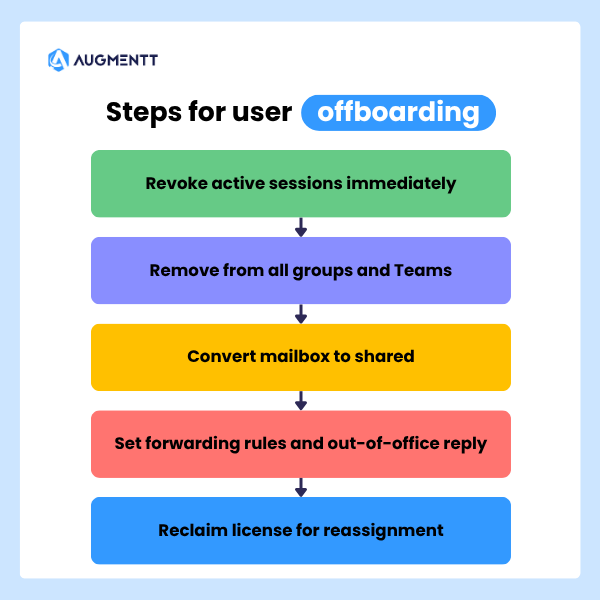
Offboarding is where automation delivers some of its clearest value. A well-designed workflow handles the entire departure process will:
- Revoke active sessions immediately
- Remove the user from all groups and Teams
- Convert the mailbox to shared so colleagues can access historical emails
- Set up forwarding rules and out-of-office replies
- Reclaim the license for reassignment
Without automation, offboarding often happens inconsistently. Some steps get skipped. Licenses sit unused for months. Former employees retain access longer than they should.
License assignment and reporting
Licenses can assign automatically based on role, department, or group membership in Entra ID (formerly Azure AD). When someone joins the sales team, they get the sales license bundle. When they move to engineering, their licenses adjust accordingly.
Automated reporting tracks usage patterns, identifies unassigned licenses, and flags when you’re approaching limits. Given that Microsoft 365 licensing represents a recurring cost, automated license management often pays for itself through reclaimed seats.
Permissions and access control
SharePoint site permissions, Teams memberships, and distribution group assignments can update automatically based on user attributes. When someone changes departments, their access rights adjust without anyone submitting a ticket.
This attribute-based approach prevents the access creep that accumulates when permissions are only added, never removed. It also creates an audit trail showing why each user has the access they have.
Compliance monitoring
Automated compliance checks continuously audit your tenant configuration against your defined baseline. When settings drift—whether through intentional changes or accidental misconfiguration—alerts trigger immediately.
This is far more reliable than periodic manual audits, which only catch issues after they’ve existed for weeks or months. Continuous monitoring means you know about problems while they’re still easy to fix.
Password resets and routine helpdesk requests
Self-service password reset (SSPR) eliminates one of the most common helpdesk tickets entirely. Users reset their own passwords through a secure workflow, freeing your team from repetitive work.
Beyond passwords, simple actions like updating email forwarding or setting out-of-office replies can also automate through user-facing workflows or scheduled jobs.
Intune device configuration
Device compliance policies, configuration profiles, and enrollment settings can deploy across all managed endpoints automatically. Every device—corporate or personal—meets your security standards before accessing corporate data.
For organizations managing hundreds of devices across multiple tenants, manual Intune configuration simply isn’t practical. Automation makes consistent device management possible at scale.
How to automate Microsoft 365 administration
Several approaches exist for automating Microsoft 365 tasks, each with different tradeoffs between flexibility, complexity, and ongoing maintenance.
PowerShell and Microsoft Graph API
PowerShell scripts calling the Microsoft Graph API offer the most granular control. You can automate virtually anything in Microsoft 365 with the right script—bulk user creation, complex permission changes, custom reporting, and more.
The tradeoff is complexity. PowerShell requires scripting expertise, careful credential management, and ongoing maintenance as Microsoft updates its APIs. Organizations with dedicated technical staff often build custom PowerShell solutions, but smaller teams may find the maintenance burden outweighs the flexibility.
Power Automate for no-code workflows
Power Automate is Microsoft’s native workflow tool. It uses a visual interface where you connect triggers (something happens) to actions (do something in response) without writing code.
Power Automate works well for approvals, notifications, and straightforward administrative tasks within a single tenant. The limitation appears with complex logic or multi-tenant scenarios—workflows become unwieldy quickly, and there’s no good way to manage dozens of separate flows across different environments.
Microsoft365DSC for configuration as code
Microsoft365DSC is an open-source tool that exports an entire tenant’s configuration as code. You can then apply that same configuration to other tenants, or use it to detect when settings have drifted from your baseline.
The tool requires PowerShell knowledge but provides excellent visibility into exactly what’s configured in each tenant. For organizations that want to treat tenant configuration like software—versioned, documented, and reproducible—Microsoft365DSC is worth exploring.
Third-party automation platforms
Dedicated platforms consolidate multiple automation methods into a unified interface, often with pre-built workflows for common tasks. These tools are especially valuable for MSPs and enterprises managing multiple tenants, where native tools require logging into each environment separately.
Platforms like Augmentt provide this consolidation specifically for MSP workflows, combining security automation, user lifecycle management, and reporting in a single multi-tenant interface.
Tools for Microsoft 365 administration automation
| Tool Type | Examples | Best For |
|---|---|---|
| Native Microsoft | Admin Center, Power Automate | Single-tenant, simple workflows |
| Open-Source | Microsoft365DSC, Maester, DCToolbox | Configuration management, auditing |
| MSP Platforms | Augmentt, CIPP, Inforcer | Managing many client tenants at scale |
Native Microsoft admin tools
The Microsoft 365 Admin Center offers bulk actions for simple tasks—creating multiple users at once, assigning licenses in batches, and similar operations. Power Automate extends this with workflow capabilities for approvals and notifications.
For single-tenant scenarios with straightforward requirements, native tools often suffice. The limitation becomes apparent when managing multiple tenants: you’re switching between environments constantly, and there’s no unified view across your portfolio.
Open-source automation tools
Several community-maintained tools fill gaps in Microsoft’s native offerings:
- Microsoft365DSC: Exports and applies tenant configurations as code for standardization and drift detection
- Maester: Audits tenant configurations against best practices and generates documentation
- DCToolbox: PowerShell module for managing and reporting on various M365 services
- Entra Exporter: Backs up Azure AD and Intune configurations for disaster recovery
These tools are free but require technical expertise to implement and maintain effectively.
MSP-built automation platforms
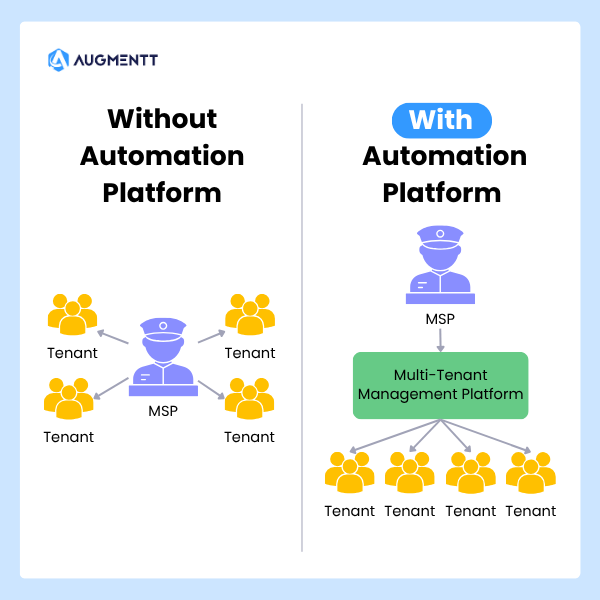
Platforms designed specifically for service providers centralize multi-tenant management, security automation, and reporting into a single interface. Instead of logging into each tenant separately, you manage all client environments from one dashboard.
When evaluating multi-tenant platforms, look for one-click security baseline deployment, automated breach detection with remediation actions, and brandable reporting capabilities. These features transform M365 management from reactive ticket work into a proactive managed service.
Automating Microsoft 365 security at scale
Security automation deserves particular attention because manual security management can’t keep pace with modern threats. By the time someone notices a suspicious sign-in and decides what to do about it, the damage may already be done.
One-click security baseline deployment
Pre-configured security settings aligned with CIS, NIST, or Microsoft Secure Score recommendations can deploy across tenants with a single action. This eliminates the hours of manual configuration typically required to harden a new environment.
The value compounds with each additional tenant. Configuring security manually for one client takes hours. Configuring it for fifty clients takes the same amount of time when you’re applying a standardized baseline.
Conditional Access policy automation
Conditional Access policies control who can access what, from where, and under what conditions. They’re one of the most powerful security tools in Microsoft 365, but they’re also complex to configure correctly.
Automating Conditional Access deployment ensures uniform policies across all users and tenants. No more discovering that one client has weaker access controls because someone forgot to configure a policy.
Automated breach detection and remediation
Suspicious activities—impossible travel sign-ins, unusual data access patterns, forwarding rules to external addresses—can trigger immediate alerts. Pairing those alerts with one-click remediation actions (block the user, reset credentials, revoke sessions) dramatically reduces response time.
This is where automation moves from efficiency improvement to genuine security enhancement. A compromised account that’s blocked within minutes causes far less damage than one that remains active for hours or days.
Microsoft Secure Score automation
Microsoft Secure Score provides recommendations for improving your tenant’s security posture. Automating the implementation of those recommendations turns security improvement from a periodic project into a continuous process.
As Microsoft adds new recommendations or updates existing ones, automated systems can apply relevant changes without manual intervention.
Automating Microsoft 365 across multiple tenants
Multi-tenant management presents challenges that single-tenant tools weren’t designed to solve. The approaches that work for one environment often break down when you’re responsible for dozens.
Multi-tenant management challenges
Native Microsoft tools require logging into each tenant individually. For an MSP managing 50 clients, that’s 50 separate admin sessions to check security status, apply updates, or generate reports. The time adds up quickly, and the context-switching creates opportunities for errors.
There’s also no native way to see what’s happening across all your tenants at once. You can’t easily answer questions like “which of my clients have MFA disabled for admins?” without checking each environment separately.
Standardizing configurations across clients
Automation enables standardized templates and security baselines across all tenants under management. Every client benefits from the same consistent configurations, reducing both risk and the cognitive load of remembering what’s deployed where.
Standardization also simplifies troubleshooting. When every tenant is configured the same way, you’re not constantly adjusting your mental model for each client’s unique setup.
Centralized reporting and visibility
Cross-tenant reports and dashboards aggregate data from all environments into a single view. Security posture, license usage, and user activity across your entire portfolio become visible without manual data collection.
Augmentt provides this centralized visibility specifically for MSPs, combining multi-tenant security management with automated, brandable reporting that can go directly to clients.
How to choose the right M365 automation approach
The right approach depends on your specific situation. A few questions help narrow the options:
- What’s your technical capacity? PowerShell offers maximum flexibility but requires scripting skills. No-code platforms trade some flexibility for accessibility.
- How many tenants are you managing? Single-tenant needs often work fine with native tools. Multi-tenant requirements point toward dedicated platforms.
- What’s your primary goal? Security hardening, user lifecycle management, and compliance reporting each have tools that excel in that specific area.
- What integrations matter? Consider whether the solution connects with your PSA, RMM, or existing reporting tools.
- What’s your budget and timeline? Building custom scripts costs less upfront but requires ongoing maintenance. Platforms cost more but deliver immediate value.
Turn Microsoft 365 administration into a scalable service
Automation transforms M365 administration from reactive, ticket-based work into a proactive operation. By eliminating manual tasks, your team can focus on strategic improvements rather than routine configuration.
The organizations seeing the best results treat automation as an ongoing operational approach rather than a one-time project. They continuously identify manual work that could be automated and build repeatable processes that scale with growth.
FAQs about Microsoft 365 administration automation
What is the difference between Power Automate and PowerShell for Microsoft 365 automation?
Power Automate is a no-code workflow tool best for approvals, notifications, and connecting services with visual logic. PowerShell provides deep, granular control for complex or bulk tasks but requires scripting expertise. Many organizations use both: Power Automate for user-facing workflows, PowerShell for backend administration.
Do I need premium Microsoft 365 licensing to automate admin tasks?
Many fundamental automation tasks work with standard licensing. However, advanced security features—certain Conditional Access policies, Microsoft Defender capabilities, and Entra ID Premium features—require premium licenses like Azure AD Premium P1/P2 or Microsoft 365 E5.
How do IT teams typically measure time savings from Microsoft 365 automation?
Teams compare time spent on manual tasks before and after automation. Key metrics include ticket resolution times, user onboarding and offboarding duration, and hours spent on manual reporting. Many teams also track tickets eliminated as a proxy for automation value.
Can IT administrators automate Microsoft 365 tasks without coding experience?
Yes. Power Automate and various third-party platforms offer no-code interfaces with pre-built workflows. Administrators can automate complex processes without scripting knowledge, though understanding what’s being automated remains important for troubleshooting.
What are the risks of automating Microsoft 365 administration?
The primary risk is applying incorrect configurations at scale—a mistake that affects one user manually could affect thousands when automated. Other risks include over-permissioning service accounts and creating dependencies on tools without proper documentation. Testing automations in limited scope before broad deployment mitigates most of these concerns.
For a deeper dive into the risks of unorganized multi-tenant management, check out our on-demand webinar for Why Identity Security Fails at Scale.